Making a 3D scan of your own ship
How to turn your model ship into a 3D model you can spin round in a browser, with a phone and a Mac. No scanner, no subscription, no service that sees your photographs. An afternoon of photography and an evening of computing.
Download as PDF Download the scripts
The model on the 3D page was made with photogrammetry: you photograph the ship from every side, and software works back to where each point sits in space. What you end up with is a mesh of triangles with your own photographs as its skin. This guide is what I wish I had had before I started. It also covers what went wrong the first time, because that is where you learn the most.
1. What you need
A phone with a decent camera. Any iPhone or Android of the last few years will do. You do not need LiDAR; I thought so too at first, but the depth sensor plays no part in this method. What matters is the ordinary camera and whether you hold it still.
A Mac with Apple Silicon (M1 or later, macOS 14 or later) for the processing. Apple has built photogrammetry into the operating system, and it is good and free. On Windows, RealityScan (Epic, free) and Meshroom (open source) are the alternatives; the photography is identical, only step 7 differs.
An overcast afternoon. Outdoors, in the shade, in even light. That turns out to matter more than any piece of equipment.
Patience for the computing. A thousand photographs took two and a half hours on a MacBook Pro. It does that by itself; you do not have to sit with it.
2. The setup
Everything hinges on this. The software looks for recognisable points in every photograph and tries to find them again in the others. Anything that changes while you walk round the ship makes that harder.
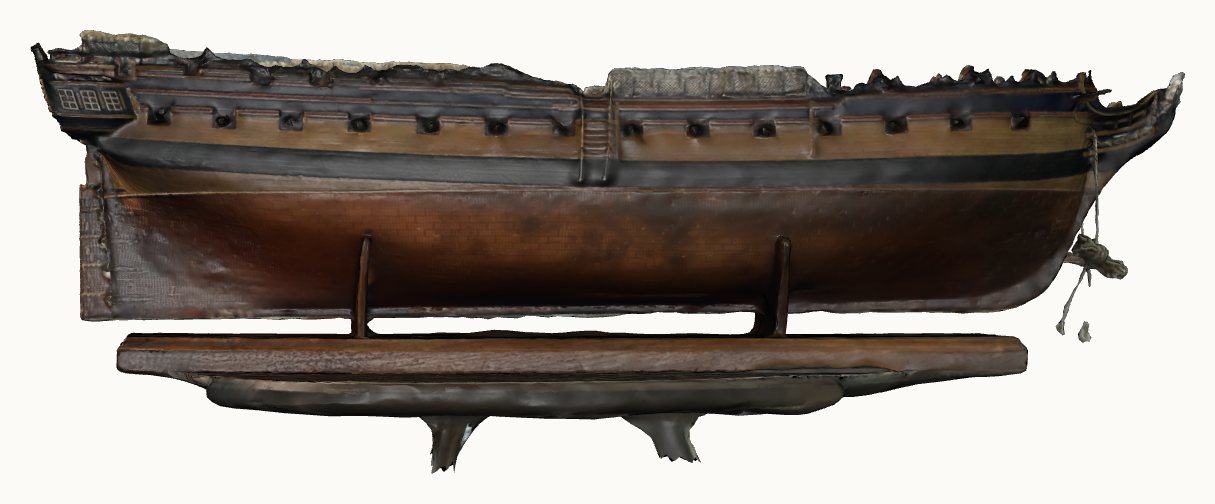
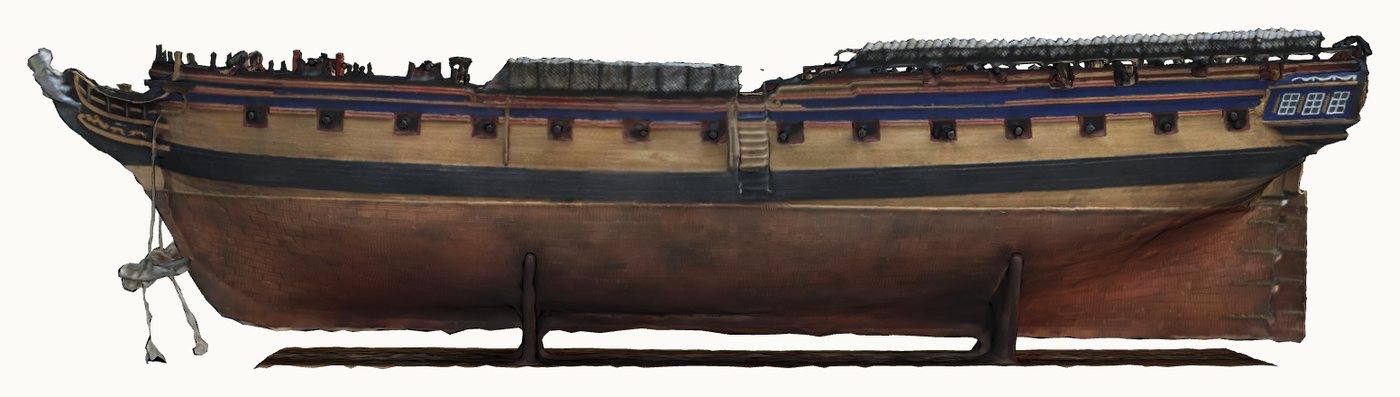
Outdoors, in the shade. My first attempt was indoors, with two lamps. The result had shadows baked into it and a hull that changed colour depending on where I stood. The second attempt was outdoors on an overcast day, and you can see the difference above. Without direct sunlight the light is the same from every side, which is exactly what the software wants. No sun, not even a little: a cloud clearing halfway through the session ruins half your photographs.
A plain background. A sheet, a large piece of card or a bare wall. Even grey or dark works best. No bookcase, no hedge with leaves that move, no window with a view.
The ship does not move. On its stand, in the middle of a table, with room to walk all the way round. Do not move the ship during the session, not even a little. If you do turn it, that is a new session.
Some texture under the ship. Put a newspaper or a piece of crumpled paper under the stand. That gives the software something to hold on to. A reflective tabletop is the opposite of helpful.
3. Setting up the phone
Just the Camera app. No portrait mode, no filters, no flash.
| What | Setting |
|---|---|
| Camera | 1× main lens |
| Mode | Photo |
| Flash | off |
| Live Photo | off |
| Night mode | off |
| Format | HEIC or JPEG, highest quality |
Always the same lens, that is the most important thing. The reconstruction assumes all photographs were taken through the same lens. If the phone switches lens halfway, the geometry no longer adds up. On an iPhone that happens in two ways without you noticing: the zoom buttons (0.5× is the wide angle, 2× and 3× the telephoto) and macro mode, which switches on by itself when you come closer than about fifteen centimetres.
Set this once:
| Where | What |
|---|---|
| Settings, Camera, Macro Control | on |
| Settings, Camera, Preserve Settings, Macro Control | on |
| In the Camera app: the flower icon bottom left | tap it as soon as it appears |
With Macro Control on, a flower icon appears as soon as the phone wants to switch to macro. Tap it and it stays on the main lens. With Preserve Settings it remembers that choice. With Macro Control off it switches silently and you see nothing.
You can check afterwards: every photograph records the focal length used. On a Mac: mdls -name kMDItemFocalLength35mm photo.heic. Every photograph should give the same number.
4. Three rings round the whole ship
First the shape. You walk all the way round three times, each time at a different height, and at every step you take one photograph with the whole ship in frame. No zooming, no cropping.
Ring 1, low. Camera just above the rail, almost at deck height. This captures the hull, the coppering and the gunports.
Ring 2, eye level. About half a metre above the deck, looking slightly down. This is the most important ring.
Ring 3, high. As steep from above as you can, arms up. This brings in the deck with all its fittings.
Every ring complete. All the way round, including the dull side. A gap in the ring becomes a hole in the model.
At what distance. Stand so that the ship fills about four fifths of the long side of the frame. With the main lens at 1× that puts you about a metre away. Keep that distance constant within a ring; that matters more than the exact figure.
Enough overlap. Two neighbouring photographs must overlap substantially, aim for seventy percent. Take one small step sideways between photographs, not a full stride. A ring then comes to about 36 photographs.
5. Then every fitting separately
This is the step that made the difference between my first and second attempt, and the one most guides leave out.
The three rings give you the shape of the ship, but at a metre’s distance fewer than four pixels land on a millimetre of ship. A two-centimetre gun is then a blob of eighty pixels. Enough to see that something is there, not enough to see what.
So after the rings you work fitting by fitting. Pick one, stand thirty to fifty centimetres away, and give it a pass of its own: a half circle round it at the fitting’s own eye level, and a half circle over it from above. Ten to twenty photographs per fitting, then the next one. At thirty centimetres, thirteen pixels land on a millimetre, more than three times what you get at a metre.
Fittings that deserve this on a frigate:
- the stern with its windows and the quarter galleries, port to starboard in a quarter circle
- the head and the bow, including from below
- every gun on its own, or at least every other one
- the ladder amidships, the hatches, the capstan, the pumps
- the hammock cranes and netting, along the whole length of the bulwark
- the rudder and the counter
- the deck straight from above, in strips from bow to stern
That is how I ended up with 1,103 photographs, and that number is not a problem. More photographs give the software more to hold on to, not less. The only cost is computing time. What does matter is that each pass connects to the rings: let the first and last photograph of a fitting’s pass show some of the surroundings, so the software can attach the pass to the rest of the ship.
Mind the depth of field. At thirty centimetres only a slice a few centimetres deep is sharp. Hold the phone as parallel as you can to the surface you are photographing, and tap the fitting to focus. If it will not focus, you are too close.
The flower icon. This is exactly where the phone jumps to macro. Check for the flower with every fitting and tap it.
6. What breaks the model
- Moving the ship halfway through the session.
- Zooming, or changing lens.
- Changing light, for instance the sun breaking through.
- Portrait mode or a filter, which blur the edges artificially.
- Moving things in frame, such as a hand or a cat.
- Cropping or straightening photographs afterwards.
- Blurred photographs. Only press the shutter once you are standing still.
And what simply does not work with this technique: thin parts you can see through. On my model the head and its rails ran into a white lump, the ropes became blobs and the hammock netting turned to foam. The camera looks through those parts to the background, and the calculation cannot then tell what is in front and what is behind. Rigging a quarter of a millimetre thick is invisible to this technique. So scan the ship before you rig it, or accept that loss.
7. Processing on the Mac
Apple’s photogrammetry is part of the operating system, but Apple ships no program for it. You need a small piece of code that calls it. That is in the scripts that go with this guide, with a README.
The steps:
- All photographs in one folder. No subfolders, throw nothing away, sort nothing. The software drops blurred photographs by itself.
- Reconstruct.
./fotogrammetrie photos/ ship.usdz medium. At detail level medium a model is more than good enough for a website. Allow about an hour per four hundred photographs. - Crop. The model also contains the table and a piece of floor.
bijsnijden.pyremoves everything outside a box, keeping the texture. - Shrink for the web.
naar_glb.pyconverts the model to GLB, the format browsers understand, and gltf-transform compresses the texture to WebP. Our model went from 52 MB to 2.9 MB without losing a single triangle.
The USDZ file from step 2 opens straight away on an iPhone, which then places the ship on your own table through the camera.
8. On your own site
We use model-viewer, a free web component from Google. One line of HTML:
<model-viewer src="/3d/ship.glb" camera-controls poster="/3d/ship.jpg"></model-viewer>
Two choices we made that I would recommend. Host the script yourself rather than from a CDN, so your visitors make no request to Google. And only load the model once someone presses a button: sending nearly three megabytes to everyone passing by is not polite, and on a phone the rendering has a real cost too. Until that click, a still image stands in.
Checklist
- Overcast weather, outdoors in the shade
- Plain background, something with texture under the stand
- Ship fixed in place, with room to walk all the way round
- Camera at 1×, flash off, Live Photo off, night mode off, no portrait mode
- Macro Control on, and kept under Preserve Settings
- Ring 1 low, all the way round
- Ring 2 eye level, all the way round
- Ring 3 high, all the way round
- Stern: quarter circle, low and high
- Head and bow, including from below
- Every gun, the ladder, hatches, capstan, pumps
- Hammock cranes along the whole length
- Deck straight from above, in strips
- Flower icon tapped at every fitting
- Everything in one folder, nothing thrown away